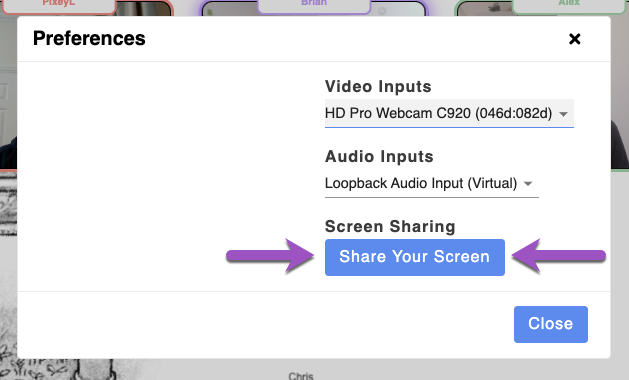
Anyone can share their screen in 📝Topia by first clicking the ⚙️ gear icon on the left-hand side of the screen and then the blue 'Share Your Screen' button shown below. After clicking the button, you can choose to share (a) Your Entire Screen, (b) any Application Window, or a (c) Chrome Tab. If you select a Chrome Tab, you can share the audio with the 'Share Audio' checkbox at the bottom left.
A user's video and screen share can be made full screen if they are a Performer. To make a user a Performer, admins can click the 👥 icon at the right and 'Performer' (see: 📝Performer Mode).